INP Explained: The New Metric to Watch
Google has replaced FID with INP (Interaction to Next Paint). Learn what this metric typically measures and how to optimize your main thread for responsiveness.
Open in
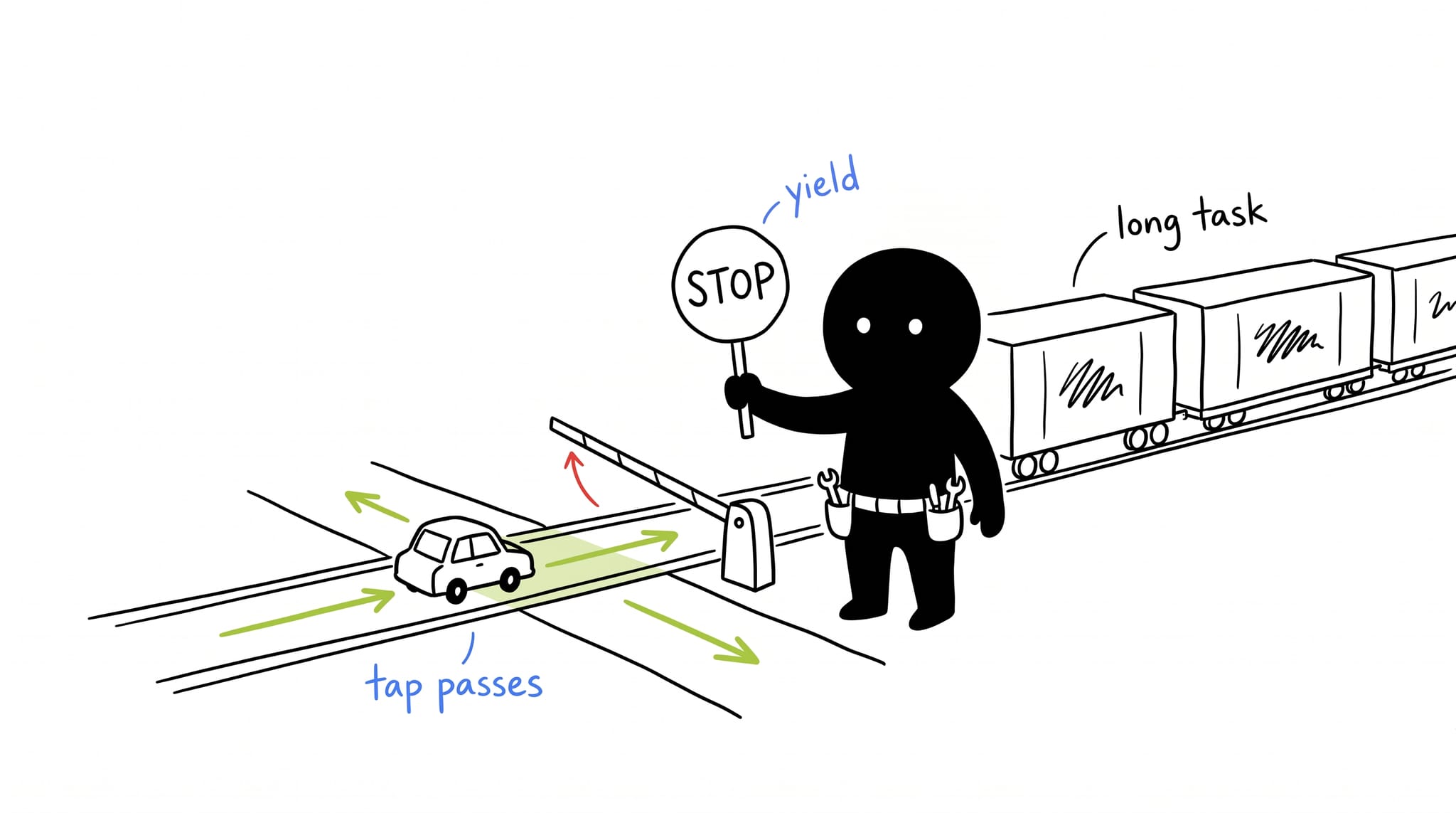
LCP tells you how fast the page loads. INP tells you how fast it responds.
A frozen UI after a button click is the problem INP measures. Google replaced FID (First Input Delay) with INP (Interaction to Next Paint) as a Core Web Vital in March 2024.
What is INP?
Interaction to Next Paint measures the time from when a user interacts (click, tap, key press) to when the browser is able to paint the next frame showing the visual feedback.
Unlike FID (which only measured the first input), INP considers all interactions during the entire lifespan of the page session. It usually reports the worst (or near-worst) latency you experienced.
A “Good” INP score is under 200 milliseconds.
The main culprit: the blocked main thread
The browser’s “Main Thread” is a single-lane highway. It handles:
- Parsing HTML/CSS
- Executing JavaScript
- Listening for Inputs
- Painting pixels to the screen
If you have a giant JavaScript function taking 500ms to run, and the user clicks a button during that time, the browser cannot process the click or update the screen until that function finishes. The user sees a frozen UI.
How to optimize INP: the scheduler API
The old hacks involved setTimeout(..., 0). The modern web gives us the Prioritized Task Scheduling API.
1. scheduler.yield()
scheduler.yield() pauses a long task, lets the browser handle user inputs or paint frames, then resumes where it left off.
The Old Way (Blocking):
function processData(items) {
  items.forEach((item) => heavyCalculation(item)); // Blocks for 500ms
}
The New Way (Yielding):
async function processData(items) {
  for (const item of items) {
    heavyCalculation(item);

    // Yield to the browser to let it breathe/paint
    await scheduler.yield();
  }
}
By awaiting scheduler.yield(), you explicitly tell the browser: “I’m done for a split second; check if the user clicked anything, then come back to me.”
Try it below. Both queues process the same 250ms of work. Run each mode, then land a click mid-task and watch where your input gets handled.
2. scheduler.postTask()
For more granular control, use postTask to assign priorities to different chunks of work.
// High priority: Do this immediately (e.g., input response)
scheduler.postTask(() => updateUI(), { priority: "user-blocking" });

// Background priority: Do this when idle (e.g., analytics)
scheduler.postTask(() => sendAnalytics(), { priority: "background" });
3. Immediate Feedback
When a user clicks “Add to Cart”, don’t wait for the API response to update the UI.
- Optimistic UI: Immediately show the spinner or “Added!” state.
- Defer Logic: Process the analytics tracking or heavy data normalization after the next paint.
Measuring INP
- Chrome DevTools: The “Performance” tab now has an “Interactions” track. It vividly shows you which interactions were slow and exactly which script blocked the thread.
- Web Vitals Extension: A browser extension that shows the live INP of the current page.
- RUM (Real User Monitoring): Tools like Vercel Analytics, Sentry, or Datadog will report real-world INP scores from your users.
Conclusion
INP measures how the page feels after it loads, not only how fast it arrives. Call scheduler.yield() in long loops so the browser can process user input between iterations.